Blog
songcompare: A Simple Tool for A/B(/C/D) Comparing Music Files
A customer recently asked us how to properly compare different recordings and files of the same song — and it turns out we already had an internal tool for exactly that. We cleaned it up and are sharing it here.
Why Compare Audio Files at All?
There are several everyday situations where you end up with multiple versions of the same track and want to know which one actually sounds better — not just which one you think sounds better:
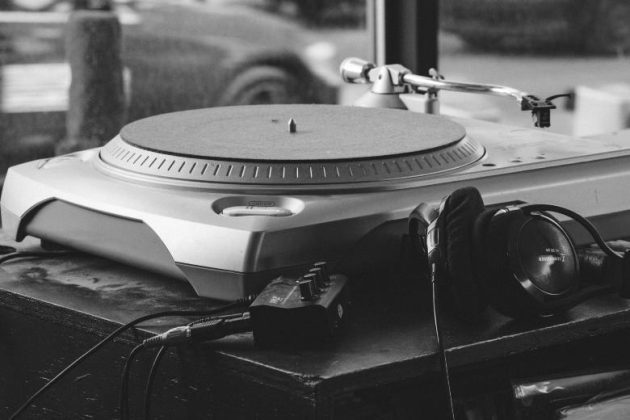
- Different recording equipment. For example, the same vinyl record digitized with two different turntables, cartridges, and/or phono preamps.
- Different compressions. MP3 vs. Ogg Vorbis vs. FLAC, or different bitrates of the same codec.
- Different mixes or masters. The original release vs. a remaster.
- Different sources. The same track from Tidal, from a CD rip, and from a download service.
The Problem with Naive A/B Tests
If you just play two files back to back and ask “which one sounds better?”, you’ll usually run into a well-known trap: the louder file wins, almost regardless of what else is different about it. Small volume differences between files are extremely common — different mastering, different codecs, different capture gain — and human hearing reliably (and unconsciously) rates louder audio as “better” or “clearer,” even when the actual difference is just level.
There are two other problems that show up specifically with recordings, rather than digital files:
- Timing offset. Two recordings of the same song rarely start at exactly the same point.
- Speed/pitch drift. Two different turntables essentially never run at exactly the same speed, so a recording made on one will slowly drift out of sync with a recording made on the other over the length of a track.
Any meaningful comparison needs to correct for all three before a listener ever hits play.
What We Built
songcompare is a small command-line tool that takes a set of audio files of the same song and prepares them for a fair listening comparison:
- Loudness matching — normalizes all input files to the same perceived volume, so no version gets an unfair advantage just for being louder.
- Alignment — lines up the files in time so they start together.
- Stretching — can time-stretch files to correct for speed differences, which matters when comparing recordings made from turntables that don’t run at exactly the same RPM.
Once the files are prepared, you can flip between them (A/B, A/B/C, A/B/C/D — as many files as you give it) and actually judge the differences you set out to compare, instead of just picking the loudest one.
You Can Even Do It Fully Blind
Loudness matching and alignment remove two sources of bias, but there’s a third one that’s much harder to shake: simply knowing which file is currently playing. If you know you’re listening to the FLAC right now, it’s very hard not to let that expectation color what you hear.
songcompare can run the whole comparison blind: it plays back the prepared files without telling you which one is currently active. You just listen and rate what you hear — no labels, no hints. Only when you exit the tool does it reveal which file was which and show you the result. That’s the only way to know whether you’re really hearing a difference, or just hearing what you expected to hear.
Try It Out
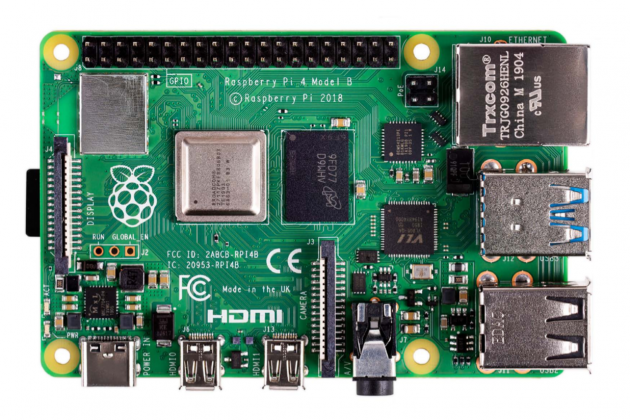
songcompare is a command-line tool, and on a Raspberry Pi there is now nothing to compile: we have packaged it.
Install from our package repository
The package is called hifiberry-songcompare and sits in the same apt repository HiFiBerryOS uses. It is built for arm64 on Debian 13 (trixie), so it installs on a 64-bit Raspberry Pi running Debian 13 or HiFiBerryOS. It is not part of any HiFiBerryOS bundle — install it only where you actually want it.
sudo install -d -m0755 /etc/apt/keyrings
sudo curl -fsSL http://debianrepo.hifiberry.com/hifiberry.gpg -o /etc/apt/keyrings/hifiberry.gpg
echo "deb [signed-by=/etc/apt/keyrings/hifiberry.gpg] http://debianrepo.hifiberry.com trixie main" \
  | sudo tee /etc/apt/sources.list.d/hifiberry.list
sudo apt-get update
sudo apt-get install hifiberry-songcompare
That gives you the songcompare command. Point it at a handful of files of the same song and see what it does.
Or build it from source
On anything else — x86 Linux, macOS, Windows — build it yourself. It is written in Rust and needs Rust 1.85 or newer:
github.com/hifiberry/songcompare
Feel free to comment directly on the project on GitHub — we’d like to hear what you think, what’s missing, and whether this is useful enough to invest more time in.
Let us know what you think.
September 2, 2026